Carbide 3D
Carbide 3D Shapeoko 5.1 Pro
Flagship large-format CNC in three sizes, ball screws and linear rails on every axis
Use with Easel Pro →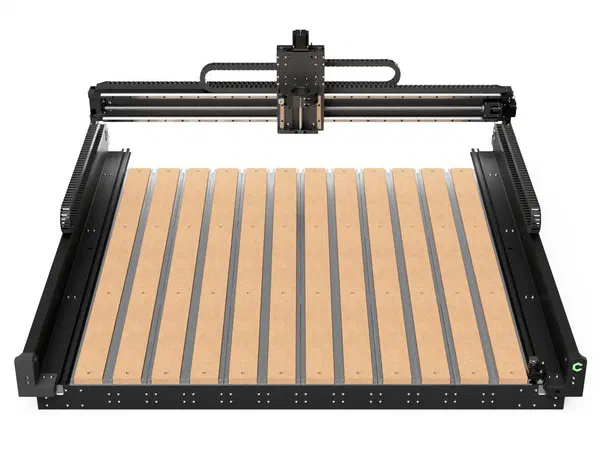
About the Machine
The Shapeoko 5.1 Pro (Easel menu: Shapeoko 5 Pro) comes in three sizes: 2x2 (24.53 x 24.53 in), 4x2 (48.7 x 24.53 in), and 4x4 (48.7 x 48.7 in), each with 6.1 in of Z travel (5.51 in with the Sweepy Pro dust boot installed). It uses a 65mm spindle mount for the Carbide Compact Router or the Carbide VFD Spindle (not included), with ball screws on every axis (16mm diameter, 20mm pitch X/Y, 10mm pitch Z) riding HG-15 linear rails.
Cut Settings on this Machine
Every cut starts with one formula: Feed Rate = Spindle Speed (RPM) x Chip Load x Number of Cutting Edges (flutes). Chip load is the thickness of material each cutting edge removes in one revolution of the bit. This number comes from the manufacturer of the bit, which publishes a chip-load chart for each bit diameter and material. Look up your exact bit and material, start from the middle of the published range, and you have the third number in the formula. The chart below shows the recommended spindle speed for each material and bit type.
| Material | Solid carbide bit (RPM) | HSS & carbide-tipped bit (RPM) |
|---|---|---|
| Plastic (hard & soft) | 18,000 | 8,000 |
| Soft woods (MDF, particleboard, etc.) | 22,000 | 10,000 |
| Hard wood (oak, maple, etc.) | 16,000 | 7,000 |
| Aluminum | 12,000-14,000 | 5,500 |
| Aluminum, softer grades (such as 3003) | 10,000 | 5,000 |
| Foam (harder foams; soft foams do not rout well) | 18,000 | 8,000 |
| Composites | 12,000 | 5,000 |
If this machine's spindle cannot reach the listed speed, run the spindle at its maximum and control the cut with feed rate. For 65mm trim routers, the DeWalt DW611 dial maps to: 1 = 16,000; 2 = 18,200; 3 = 20,400; 4 = 22,600; 5 = 24,800; 6 = 27,000 RPM.
The Shapeoko 5.1 Pro ships without a spindle: the 65mm mount fits the Carbide Compact Router or the Carbide VFD Spindle, so your actual RPM depends on what you install. Ball screws on every axis (16mm diameter) and HG-15 linear rails make this the most rigid machine in the Shapeoko lineup, closer to the truly rigid, powerful-spindle machines that can cut as deep as the bit is wide in a single pass, though that still depends on which spindle you run and how well your clamps hold the material. Even on a build this solid, push too deep before you know your setup and the bit deflects and chatters, leaving scalloped edges, or it rubs instead of cutting and burns the material, so start conservative and work up. The fastest way to dial in a cut is to see what has already worked for other people.
Worked example for feed rate: 1/8in (3.175mm) two-flute solid carbide end mill in hard wood. The chart says 16,000 RPM. With the bit maker’s 0.025mm per tooth (0.0010 in): 16,000 x 0.025 x 2 = 800 mm/min (31 in/min) feed. For depth per pass, start shallow and check Community Cut Settings in Easel for what works on the Carbide 3D Shapeoko 5.1 Pro. If the cut sounds strained, reduce the depth, not the feed. Slowing the feed below the chip load makes the bit rub instead of cut.
Community Cut Settings shows the spindle speed, feed rate, and depth per pass other makers actually run for your machine, material, and bit.
CNC has never been easier
Using this machine with Easel
The Shapeoko 5.1 Pro runs GRBL firmware (not stated by Carbide 3D, but confirmed through Carbide 3D’s own community and support channels), so it connects directly to Easel. Install the free Easel Driver and plug in over USB, or connect driverless with Rapid Connect in a Chromium browser (Chrome, Edge, or Opera). Design in the browser, then the Carve button homes, zeroes, and runs the job with live progress. You can also export G-code to run from another sender, such as Carbide Motion. Select ‘Shapeoko 5 Pro’ (2x2, 4x2, or 4x4, matching your machine’s size) in Easel’s machine menu to size the canvas.
Prefer not to install anything? Rapid Connect lets any GRBL machine, this one included, connect straight from your browser. If you go the driver route, grab it from the downloads page and follow the step-by-step install guide.
Try Easel Free →Start creating with your CNC
Create your free Easel account and connect your machine in minutes.
Easel Free Trial →